
There may be instances where your Mimecast for Outlook plugin may not be logged on. If this is the case please follow these steps to reauthenticate.
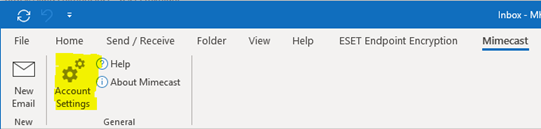
1. Click Mimecast on the Outlook toolbar.
2. Then click on Account Settings to log into the plugin.
3. A new window will open. You will be prompted for Cloud or Domain Authentication options. Always login using Domain Authentication.
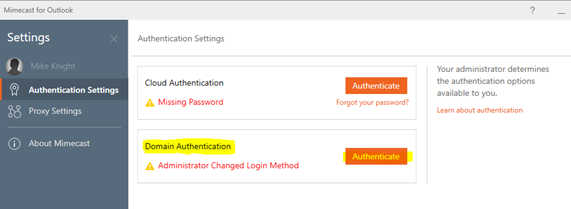
4. Under the Domain Authentication section, click the Authenticate button.
5. Your email address should already be populated, you will need to enter your network password then click Submit Password. Your cell phone number on file will be used to receive a 6 digit code from Mimecast, type this in to complete the login process. NOTE: If your cell phone number has changed, please notify IT.
6. Once completed, the status of Domain Authentication should show Active and you can close the window. At this point the Mimecast tab in Outlook will be populated with several options:
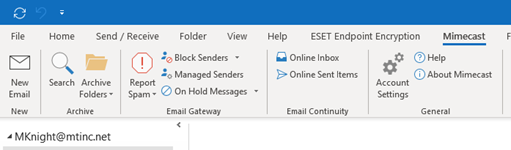
This plugin will remain logged on for 90 days or until you change your network password.
Comments
0 comments