
- The easiest method is to select all sheets and change their DPI printing settings. This works only if you have the same printing settings for each sheet in the workbook. Please note that by using this method you will have the same settings for all sheets, including the header/footer.
- However, if you have different printing settings for each page (for instance if you have a Header/Footer set for each page), you will need to change the DPI printing settings for each page individually.
-
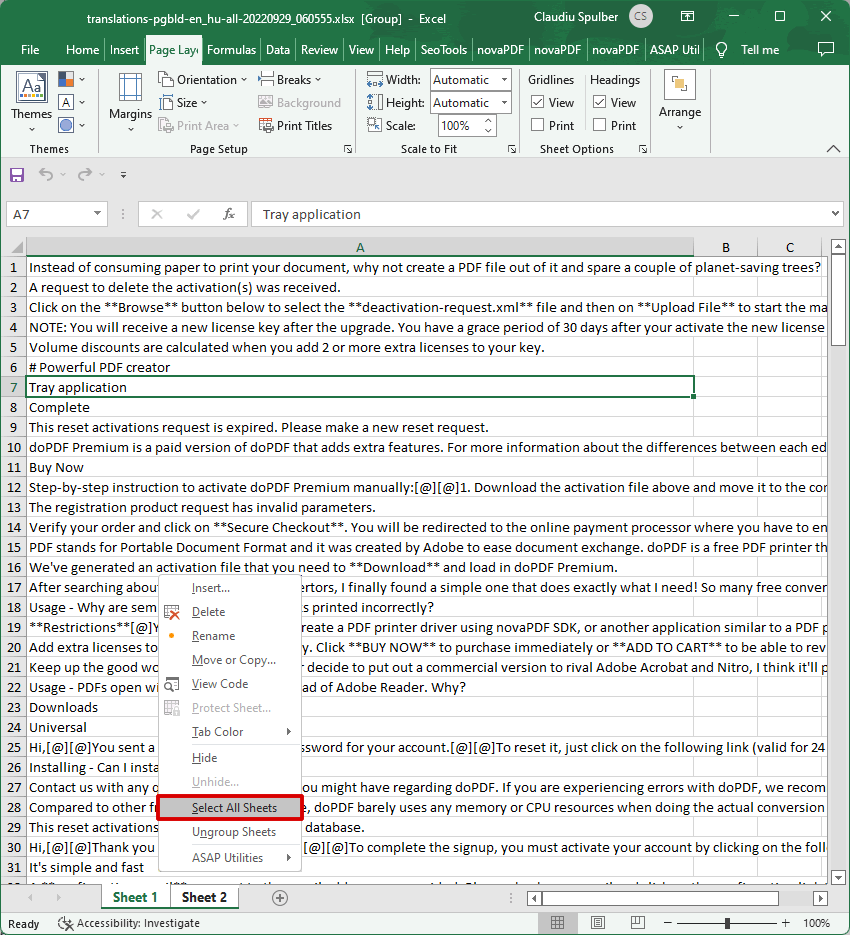
Open the Excel workbook and right-click on the tab for any of the sheets you have in your workspace (by default they sheet tabs are named Sheet1, Sheet2, ...). Click on the Select all Sheets option.
-
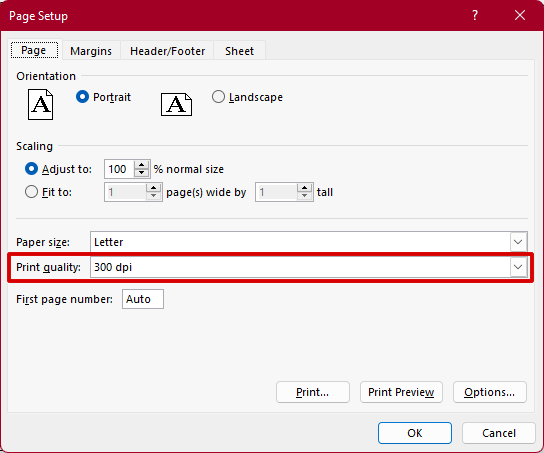
In Microsoft Excel go to Page Layout and click on the expand button for the Page Setup dialog. Set the Print Quality to the DPI value you want and press OK so that Excel will record the fact that all pages have the same print settings. It's important to press the OK button even if you don't change anything, because this will "tell" Excel that all the sheets have the same page setup options.
-
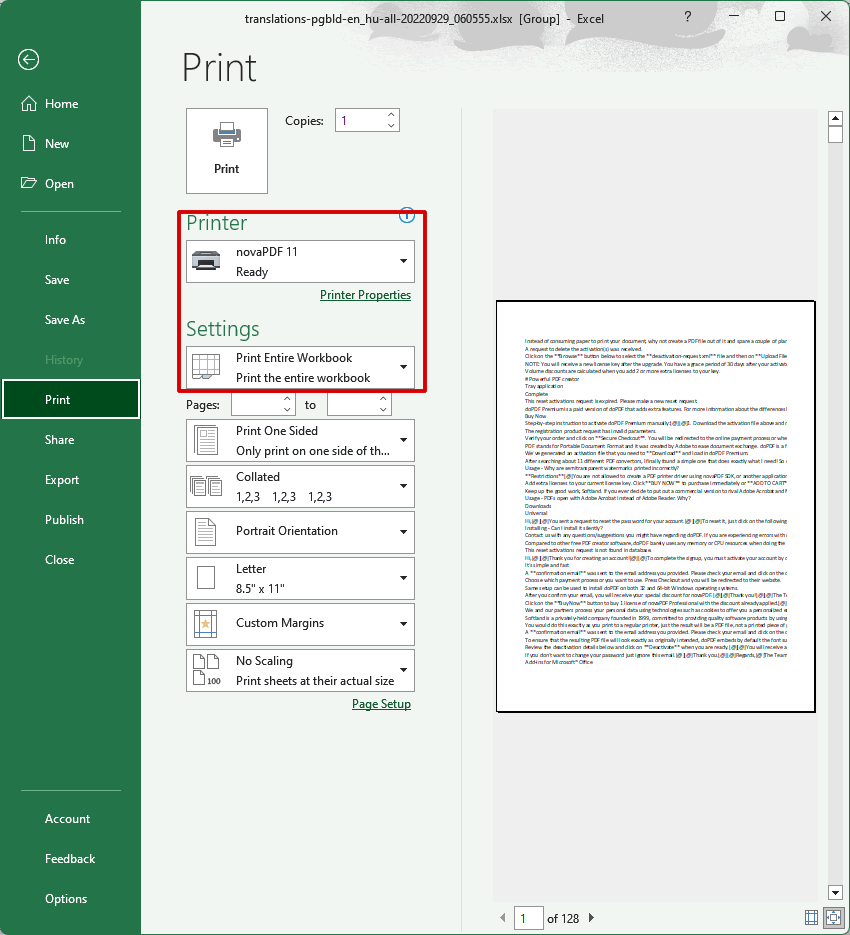
Click on File then Print and see if you like the way the pages will show when printed to PDF. If you don't have any changes to the printing options select the Print Entire Workbook option, then click Print to create the PDF file.
-
The Save PDF window will open. Choose where you want the PDF to be saved and click on OK to finalize the PDF creation. The PDF will be opened with the default PDF viewer.
*If you are trying to print to a printer, you can now print the newly created PDF file to the printer with no issues. *
Comments
0 comments