
Method 1:
Go to Start (Window Icon on Taskbar)
Then select the Power button
Then select Restart .
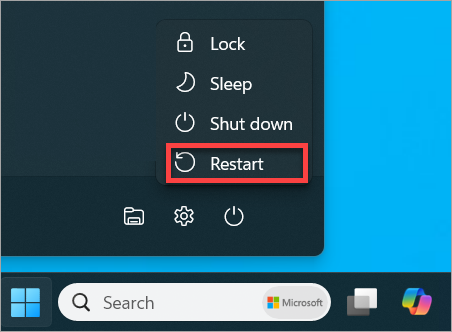
Your VM will then begin the restart process, this may take up to five minutes. After five minutes have elapsed, please then try to connect to your VM again.
Method 2:
The second way to restart a cloud PC is through the Windows App, this can be useful if you are unable to connect to your VM at all.
You can restart the cloud PC by following these steps from the Windows App interface.
- Click on the three dots, and from the list of options, select Restart.
During the restart of the Cloud PC, we see the status “Cloud PC is restarting” on the Windows App page. After the restart is complete, the status changes to “Cloud PC was restarted “. You can now access the Cloud PC by signing in with the credentials. This process also may take up to five minutes.
If you encounter issues after following these steps, please submit a ticket to the IT Helpdesk.
Comments
0 comments