
Windows Users:
To connect to your Cloud PC on Windows, follow these steps:
1. Download and install "Windows App" from the Microsoft Store. When Windows App is installed, open it.
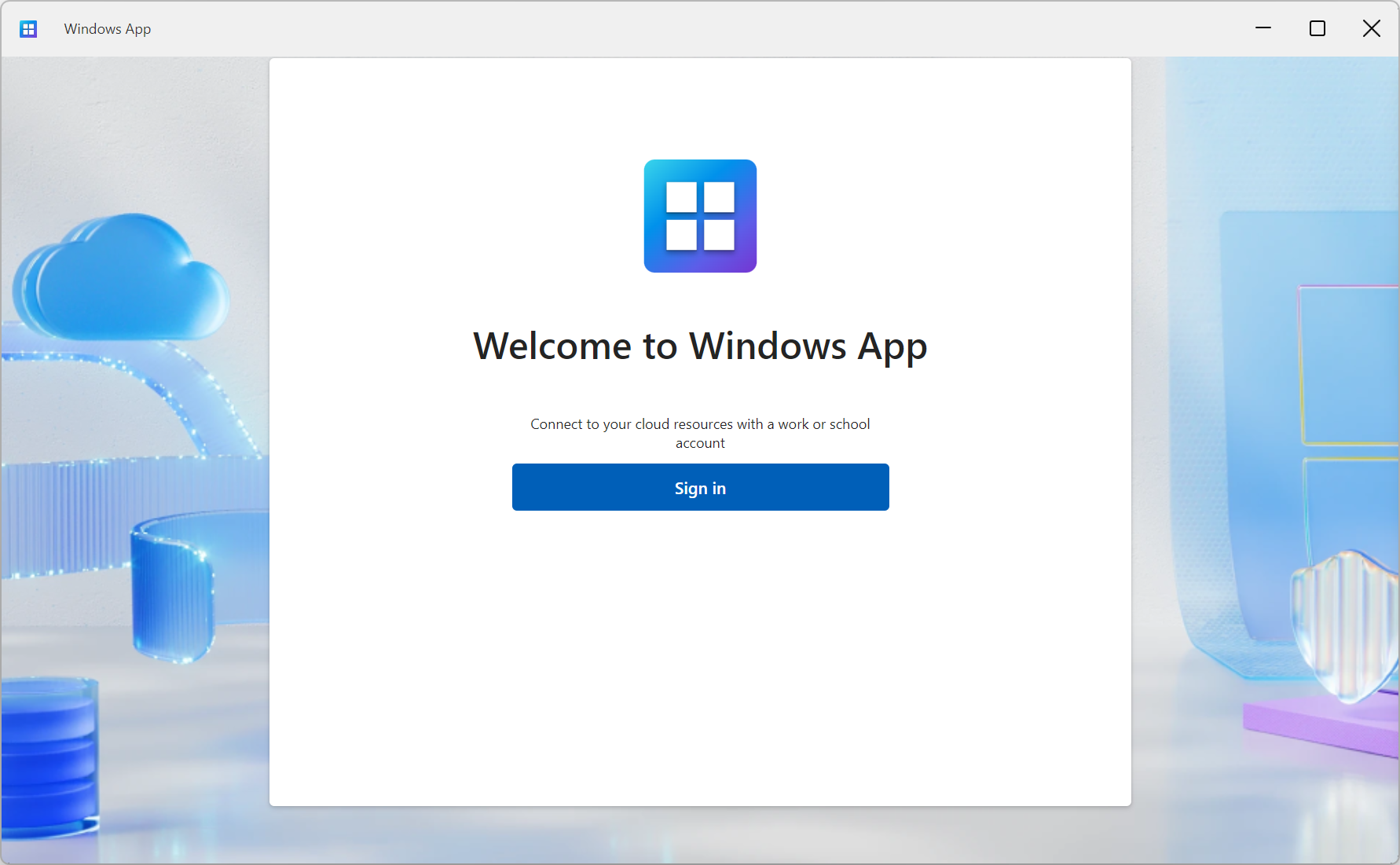
2. Select Sign in and sign in with your user account for Windows 365. If you're signed into other Windows applications, you may be signed in automatically.
3. If it's your first time using the Windows App, navigate through the tour to learn more about Windows App, then select Done, or select Skip.

4. After you sign in, select the Devices tab to show your Cloud PC and any other services you have access to. If you don't see a Cloud PC, contact the IT Helpdesk.

5. Find the Cloud PC you want to connect to. You can use the search box and filters to help you.

6. Select Connect on a Cloud PC to connect. Once the connection to your Cloud PC is complete, you're ready to start using it. *Follow this guide for instructions on how to use all screens.*
Mac Users:
To connect to your Cloud PC on macOS, follow these steps:
1. Download and install "Windows App" from the Mac App Store. When the Windows App is installed, open it.
2. If it's your first time using the Windows App, navigate through the tour to learn more about Windows App, then select Done, or select Skip.

3. The Windows App opens on the Devices tab. Select the plus (+) icon, then select Add Work or School Account.

4. Sign in with your work email & password.
5. After you sign in, the Devices tab shows your Cloud PC and any other services you have access to. If you don't see a Cloud PC, contact the IT Helpdesk.

6. Find the Cloud PC you want to connect to. You can use the search box to help you find what you want to connect to.
7. Double-click the Cloud PC to connect. Once the connection to your device or app is complete, you're ready to start using it. *Follow this guide for instructions on how to use all screens.*
Other Devices:
The Windows App is supported on various other devices as well, if your device isn't listed in this guide please follow this link for further documentation.
Comments
0 comments