
Before a meeting
- Go to your Teams calendar.
- Select a meeting and select Join.
- From the pre-join screen, select Video effects
.
- To blur your background, select the dropdown arrow next to Blur and choose Standard blur or Portrait blur.
- Select a Teams background to apply it to your video feed, or upload and apply your own.
- To use an image of your own, select More video effects > Add new
and then select one to upload from your computer. HIG's custom backgrounds are stored in the S drive under SharedFolderForEveryone > 1 - Microsoft Teams Backgrounds.
- To use an image of your own, select More video effects > Add new
- To blur your background, select the dropdown arrow next to Blur and choose Standard blur or Portrait blur.
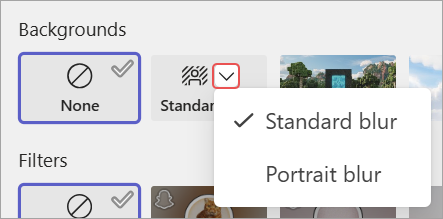
To turn off background effects, select None 
Note: If you don't see this option in the menu, the feature might not be available on your device.
During a meeting
- Join a Teams meeting.
- In your meeting controls, select More actions
> Video effects and settings
- Select Video effects.
- To blur your background, select the dropdown arrow next to Blur and choose Standard blur or Portrait blur.
- Select a Teams background to apply it to your video feed.
- Select Add new
- Select Preview to view the background before you apply it.
- Select Apply.
Comments
0 comments